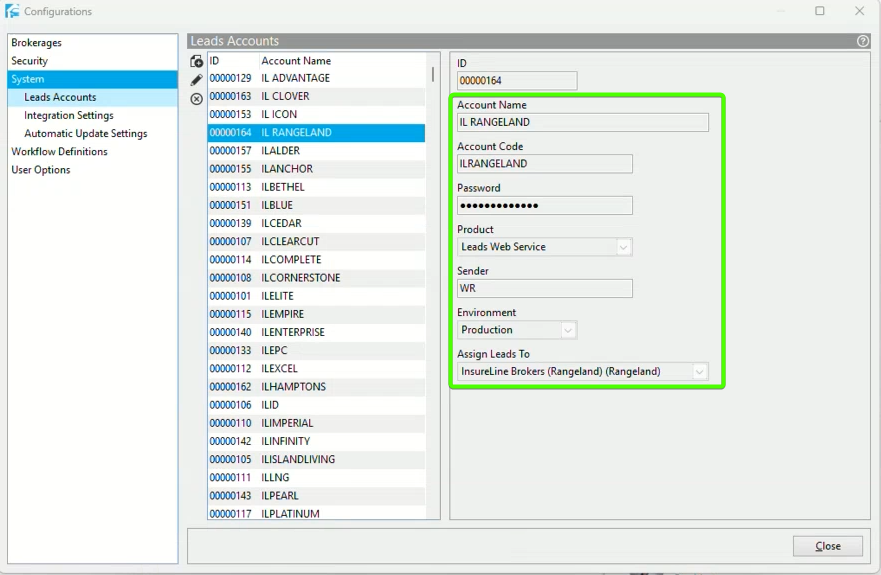
1) Log in to Applied Rating Services -> System -> Leads Accounts
a) Open the most recently created franchise and make a note of the settings (ID is automatically created when a new leads account is added)
2) Next hit add new button to create a new Leads account and fill in the details of the new franchise matching the existing one you noted. In the "Assign Leads to" dropdown you will select the new franchise from the list provided (Note - if the franchise hasn't been added to ARS you will need to do that first) -> Finish
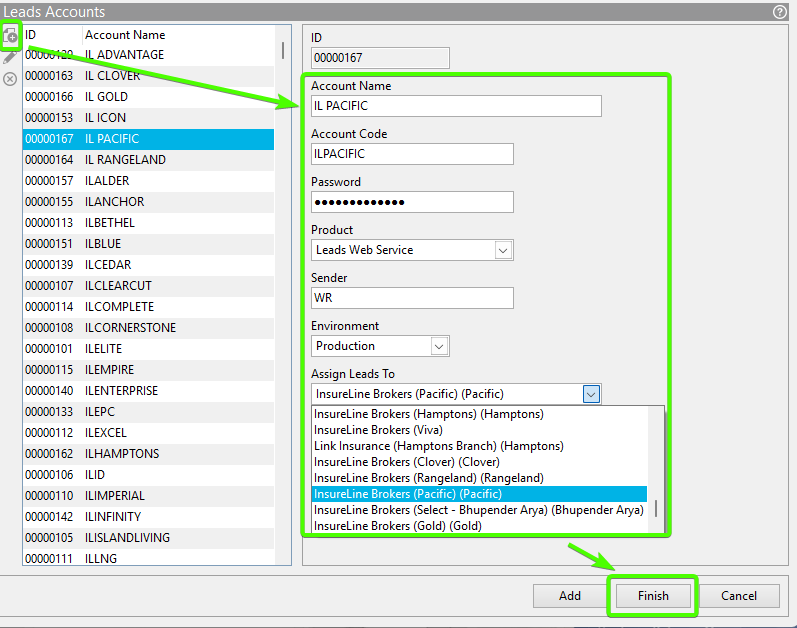
a) Account name - IL NEWFRANCHISE NAME
b) Account code- ILNEWFRANCHISENAME
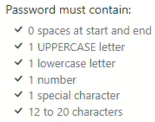
c) Password - make a note of this password, it has to be entered exactly the same in Webrater (eg: Webrater2026!)
d) Product - Leads Web Service
e) Sender - WR (Web Rater)
f) Environment - Production
g) Assign Leads To - Select Franchise from dropdown
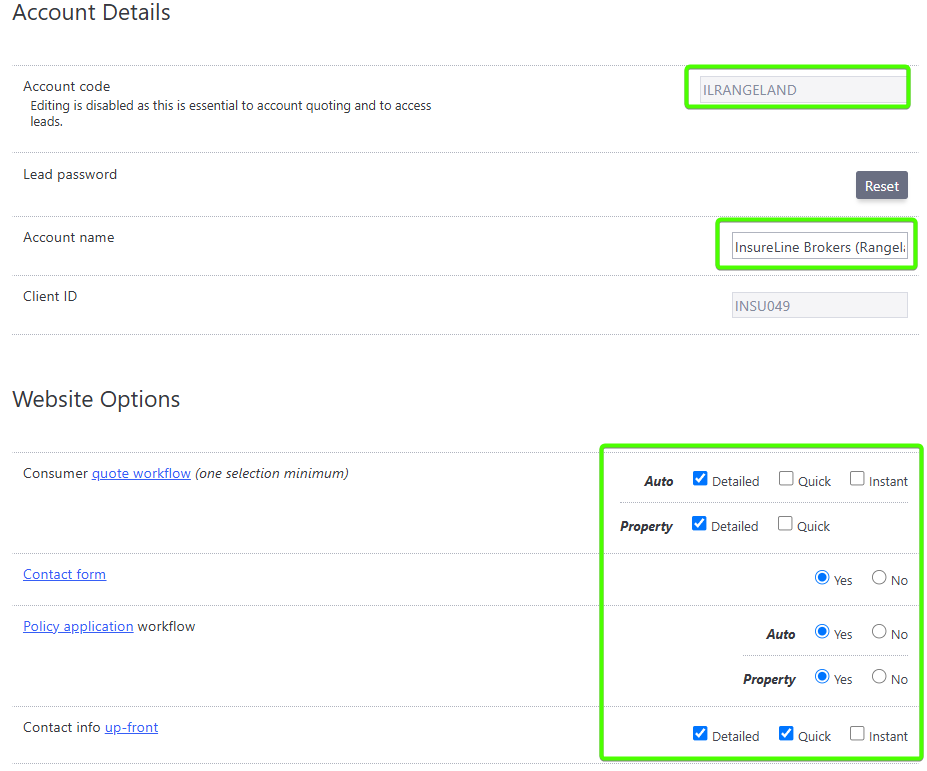
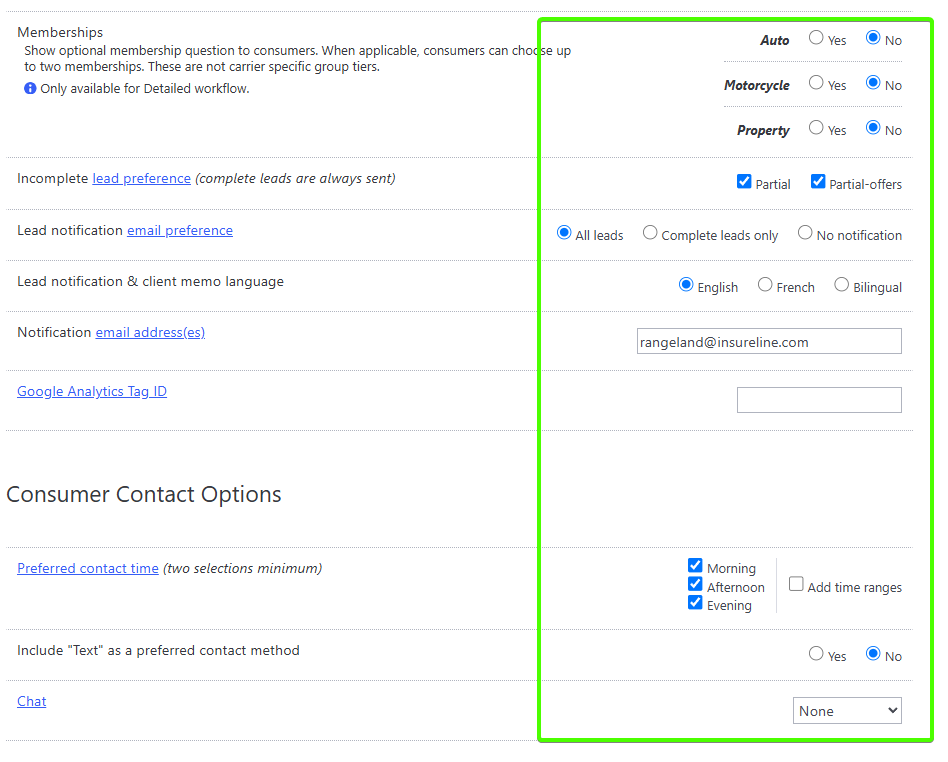
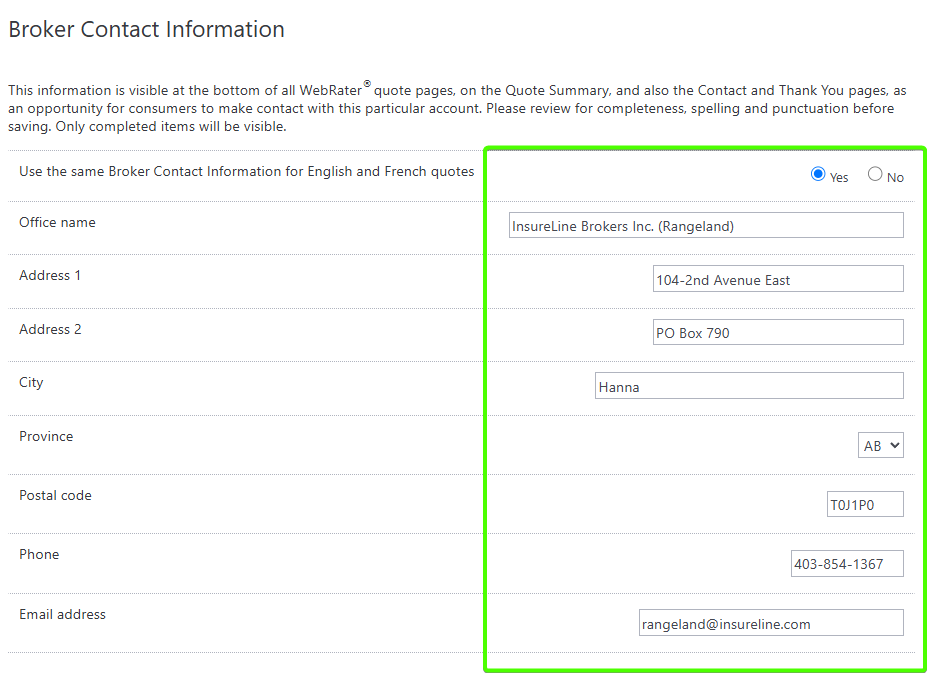
3) Log in to Applied Web Rater Admin (WebRater® Administration) -> Open the most recently created franchise and make a note of the settings (ClientID is automatically created) by hitting the gear icon

4) From the home page -> + Account to add the new franchise
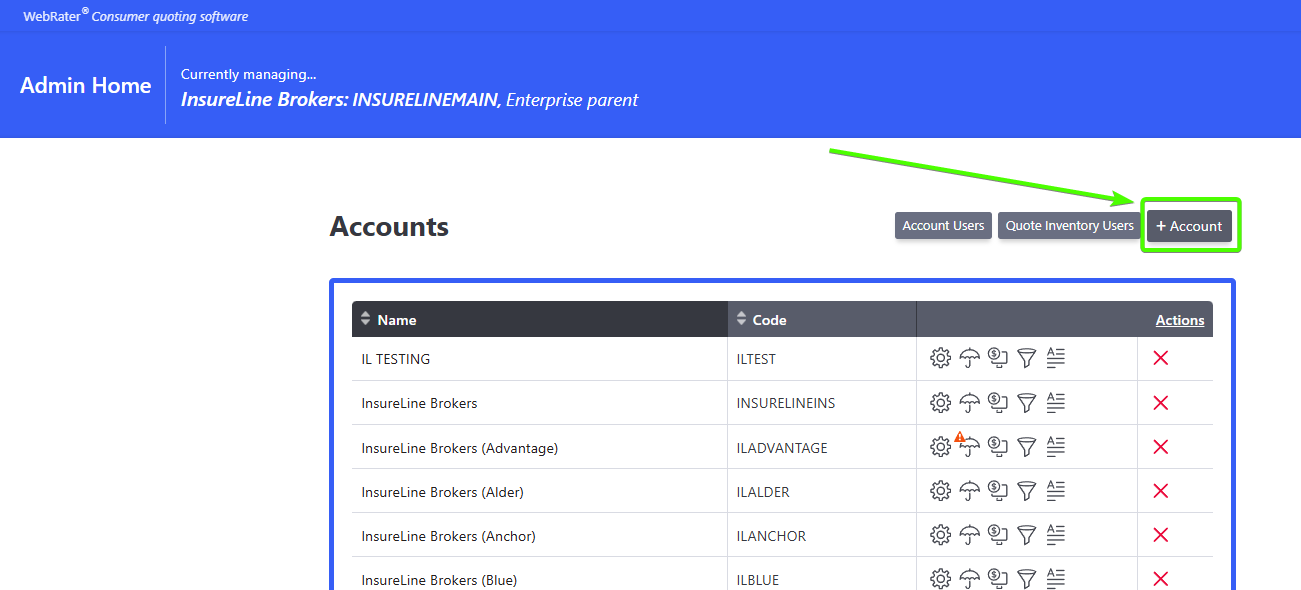
5) Fill in all the details to match the previous franchise you noted -> Save Changes
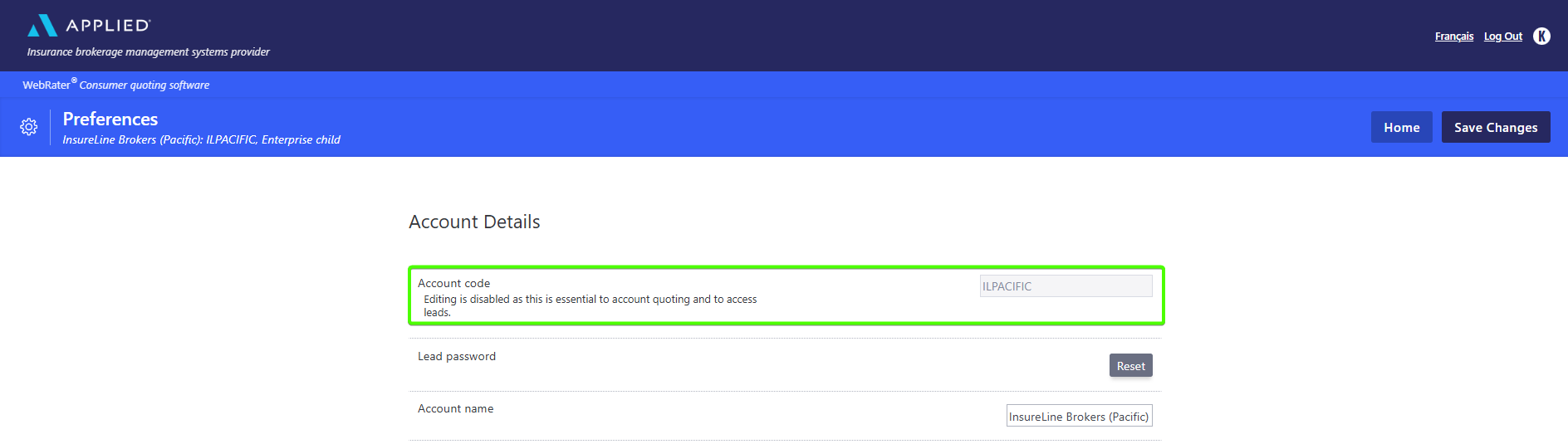
a) Account Code - ILFRANCHISENAME
b) Lead Password - This is the password you entered in step 2 and HAS to match exactly (eg: Webrater2026!)
c) Account Name - InsureLine Brokers (Franchisename)
d) Client ID - This is automatically generated when the new account is saved
e) Match the rest of the options in the list to the previous franchise
f) Broker Contact Information - Fill in the franchise information (Found in Epic, or in the franchise onboarding ticket)
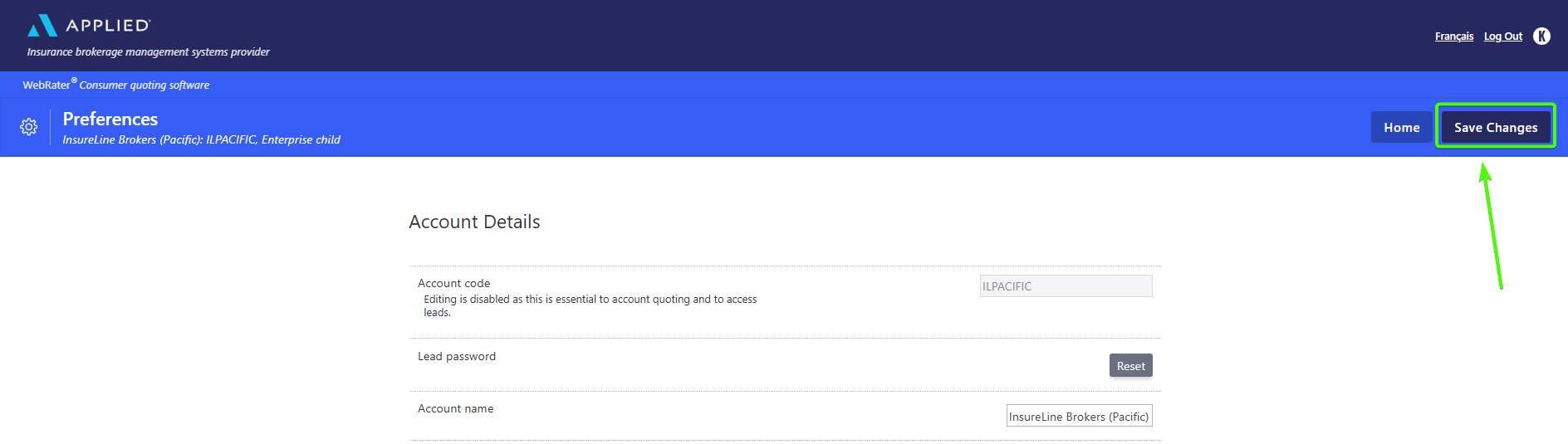
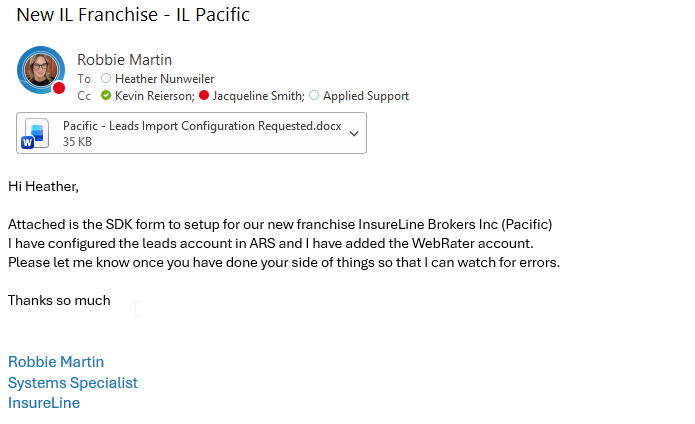
6) Go to InsureLine Marketing Systems - Technology - Leads Import Configuration Requests - All Documents -> Make a copy of the "_Master template 2026 - Leads Import Configuration Requested" -> move it to InsureLine Marketing Systems - Technology - Pending Webrater SDK forms - All Documents -> Rename it to "Franchisename - Leads Import Configuration Requested"
7) Edit the document with the new franchise information
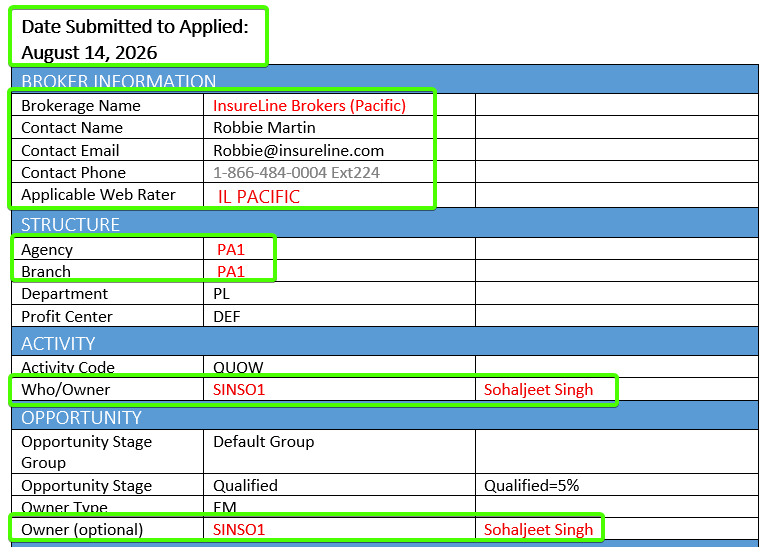 a) Date Submitted to Applied- Todays Date
b) Broker Information
Brokerage Name - New franchise Name
Contact Name - Your Name
Contact Email - Your Email
Contact Phone - Your Phone #
Applicable Web Rater - This is the Account Code generated when creating the WebRater account
c) Structure - New Franchise Agency/Branch code from Epic
d) Activity - Who/Owner is new Franchise owner name and employee lookup code from Epic (This user needs to have the new structure on their employee account)
e) Opportunity - Owner (Optional) is new Franchise owner name and employee lookup code from Epic
8) Once the form is completed send it to Applied with the following format